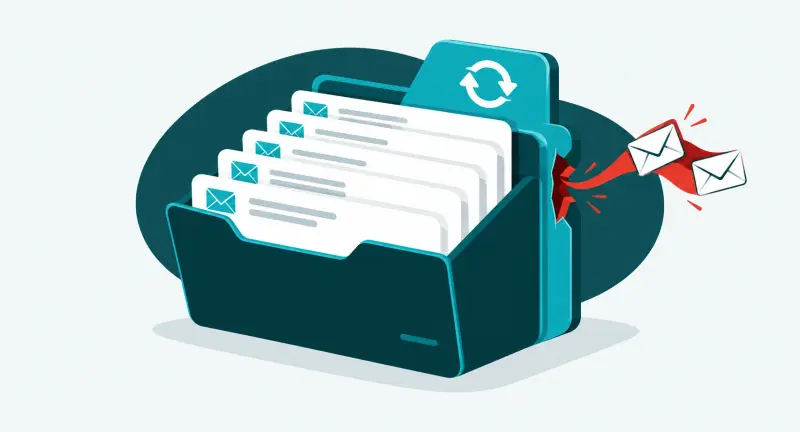
Your family photos, tax records, schoolwork, scanned documents, creative projects, and personal files may live on a computer that can fail without warning. A lost laptop, damaged drive, accidental deletion, or ransomware infection can turn years of important data into a recovery problem.
Personal backup doesn't need to be complicated. For most people, a practical plan combines an external drive with an automatic personal cloud backup service. If you want a simple, affordable option that can protect files from multiple computers and devices, IDrive Personal is our straightforward recommendation.
Disclosure: The IDrive links in this article are referral links. Spot On Tech may receive a commission at no additional cost to you. We recommend comparing current storage limits, introductory pricing, renewal pricing, and features before purchasing.
Key takeaways
- Personal cloud backup protects a separate copy of your files away from your computer and home.
- Cloud storage and file sync are useful, but they are not a complete backup plan by themselves.
- IDrive Personal is an easy option for people who want scheduled online backup without building a complicated system.
- A good home backup plan still needs an occasional restore test.
- IDrive Business can work as a self-managed business backup, while managed business backup adds monitoring, testing, verification, and accountability.
What should a personal backup protect?
Start with anything that would be difficult, expensive, or impossible to replace. Your personal file backup should usually include:
- Family photos and home videos.
- Tax returns, financial records, and insurance documents.
- School assignments, research, and professional certifications.
- Scanned IDs, legal documents, and household records.
- Personal writing, design files, music, and creative projects.
- Important downloads and files saved on the desktop.
- Data from additional home computers or supported mobile devices.
You may not need to back up every temporary download or application cache. Focus on the files that matter, make the backup automatic, and leave enough room for your photo and video collection to grow.
Cloud storage is not the same as cloud backup
OneDrive, iCloud, Google Drive, and Dropbox make files available across devices. That synchronization is convenient, but a change or deletion can also sync across devices. Retention and version history may help, but the exact recovery window depends on the platform and account settings.
Online backup is designed around recovery. It creates another copy so you can restore files after a computer failure, accidental deletion, theft, malware, or another loss. The safest approach is to treat file sync as a productivity tool and backup as a separate protection layer.
This is the personal version of the same principle businesses use: a file is not fully protected just because it is stored in a cloud-connected folder.
A simple personal backup plan that is easy to maintain
You do not need a server rack or advanced technical skills to create a strong home computer backup. A practical version of the 3-2-1 backup strategy looks like this:
- Keep the working copy on your computer or primary device.
- Make a local backup to an external hard drive for fast recovery.
- Keep an offsite copy with a personal cloud backup service.
The local drive helps when you need a large restore quickly. The cloud copy helps when the computer and external drive are affected by the same theft, fire, electrical problem, or ransomware incident. Using both gives you better protection without making the plan difficult to manage.
Why we recommend IDrive for personal cloud backup
IDrive is a good fit for people who want one account for automatic online backup across personal computers and supported devices. It offers scheduled backup, file version recovery, encryption, and options for backing up selected files or more of the computer.
It is especially useful when a household has more than one computer. Some personal backup services are priced around a single machine, while IDrive Personal offers plans intended for multiple computers and devices within the account's storage allowance.
We also like that it gives users room to start simple. You can protect the folders that matter most, confirm that the first backup finishes, and test a small restore before adding more data.
Where IDrive Personal fits well
- You want affordable cloud backup for photos and documents.
- You have more than one home computer to protect.
- You want backups to run automatically on a schedule.
- You want an offsite copy in addition to an external hard drive.
- You are comfortable managing the account and checking backup results yourself.
What to check before signing up
- Storage capacity: Add up the data on every device you plan to protect and leave room for growth.
- Current and renewal pricing: Promotional pricing can change, so compare the full plan terms.
- Backup selection: Confirm that important folders, external drives, or other data sources are included.
- Internet speed: The first cloud backup may take time when you have a large photo or video library.
- Account security: Use a unique password and enable multi-factor authentication.
- Recovery process: Know how you would restore files before an emergency happens.
How to set up automatic backup for personal files
A simple IDrive personal backup setup can be completed in a few steps:
- Choose an IDrive Personal plan with enough capacity for your current files and expected growth.
- Install the backup application on each computer you want to protect.
- Select your Documents, Desktop, Pictures, Videos, and other important folders.
- Set a schedule that runs when the computer is normally powered on and connected to the internet.
- Let the first backup finish and review the result for skipped files or errors.
- Restore a few sample files to a different folder and open them.
- Check the backup periodically and after major computer or folder changes.
That final restore test matters. A green status screen is helpful, but opening a restored photo, document, or spreadsheet proves that the recovery process works.
How often should you back up personal files?
The right schedule depends on how often your data changes. If you work on important files every day, use daily automatic backup or more frequent protection where the software supports it. If the computer mainly stores an archive of older photos and records, a less frequent schedule may be enough.
Whatever schedule you choose, keep the device powered on long enough for backups to finish. Review the account after adding a new computer, moving folders, connecting a new external drive, or importing a large collection of photos.
Can IDrive work for a small business?
Yes. IDrive Business can be an approachable self-managed backup option for a small company that wants to protect computers and supported server workloads without outsourcing the entire process.
Self-managed business backup works best when one person is clearly responsible for:
- Confirming that every required computer, server, and cloud application is covered.
- Reviewing failed or incomplete backup jobs.
- Protecting administrator credentials with multi-factor authentication.
- Managing retention, storage usage, and employee offboarding.
- Testing restores and documenting the results.
If nobody owns those tasks, an easy backup product can still leave the business with gaps. Buying backup software and having a verified recovery program are not the same thing.
Self-managed backup vs. managed business backup
For personal files, a self-managed service is often exactly what is needed. A business has more dependencies: shared data, servers, Microsoft 365 or Google Workspace, industry requirements, employee turnover, ransomware risk, and a limited tolerance for downtime.
Spot On Tech provides managed business backup and disaster recovery with an operational process around the technology. We identify what needs protection, monitor backup results, investigate failures, verify coverage, perform recovery testing, and document what can be restored. We do not simply enable a backup job and assume it will work.
That testing and verification is the main difference. A self-managed IDrive Business account can be a simple option when your team has the time and knowledge to manage it. Our managed service is designed for businesses that want ongoing oversight and someone accountable for recovery readiness.
For a deeper business comparison, read our business cloud backup guide. If your company needs help evaluating its current backups, talk with Spot On Tech about a practical review.
Frequently asked questions about personal cloud backup
What is the best way to back up personal files?
Use both a local external drive and an automatic offsite cloud backup. This protects you from common computer failures while keeping another copy away from your home and primary device.
Is IDrive good for personal backup?
IDrive is a strong, easy-to-manage option for personal cloud backup, especially for households with multiple computers or devices. The best fit still depends on your total data, internet connection, desired recovery method, and budget.
Does cloud backup replace an external hard drive?
It can protect an offsite copy, but using both is better. An external drive can make a large restore faster, while cloud backup protects against events that affect the computer and local drive together.
Is OneDrive or iCloud enough for backup?
They provide valuable sync, storage, and recovery features, but they should not automatically be treated as a complete backup plan. Review their retention settings and keep a separate backup of files you cannot afford to lose.
What is the difference between IDrive Personal and IDrive Business?
IDrive Personal is aimed at home and individual use. IDrive Business adds capabilities and plan structures for organizations, computers, users, and supported server data. Businesses should also decide who will monitor jobs and test recovery.
How do I know whether my backup actually works?
Restore several files to a separate location, open them, and confirm that they are complete. Repeat this test periodically and whenever you make a major change to your devices or backup settings.
Start with a backup plan you will actually use
The best personal backup plan is usually a simple one: it runs automatically, protects the files you care about, keeps a copy outside your home, and can restore those files when you need them.
For a simple and affordable place to start, compare IDrive Personal backup plans, choose enough storage for your household, and test a restore after the first backup completes.